Showing posts with label Gmail. Show all posts

Monday, June 30, 2014

Amazing Tips - The Art of Hovering

The Art of Hovering

Getting more from your software

I am frequently asked how I learn new software and keep current with new releases. The primary approach I use is to hover.

According to Merriam Webster, there are many uses for the word hover including:
  • to float in the air without moving in any direction
  • to stay very close to a person or place
  • to stay near a specified point or level
When learning new software I am referring to the third use of hovering. I move slowly across any toolbars that are available, pausing at each item. As I do so a balloon label generally appears giving me some insight into the use of the tool. This is quite helpful because it is not uncommon that the icons defy deciphering and the balloon label is of limited help. At least at that point I can go to a browser and search for more information about the tool since I now know what it's called.

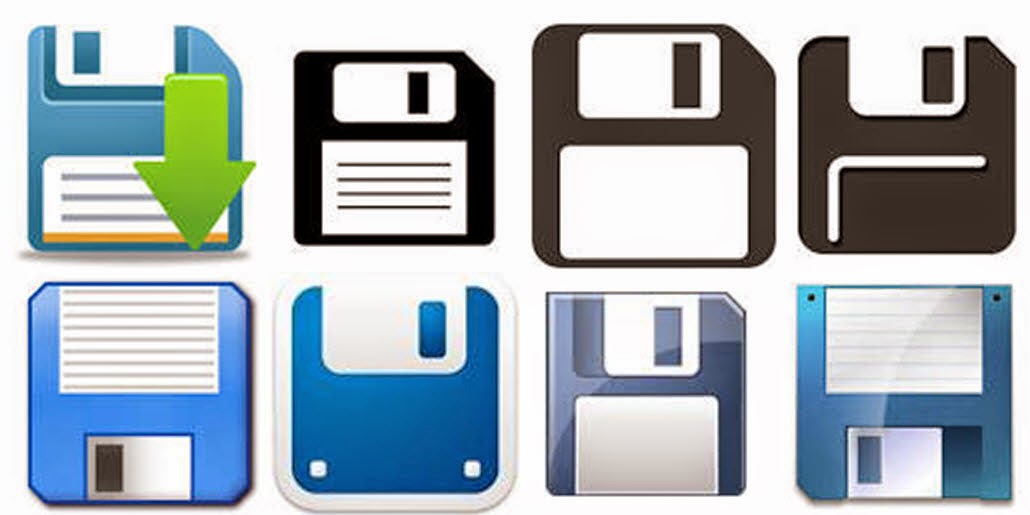
I think it's generational but, the graphic designers who come up with the size/shape/color of the tools often have different perspective than I do and different from the people I work with. In the early days of computers, the designers came up with the blue floppy disk to represent "Save". Twenty five years later I'm still pointing it out to people and explaining that it is the tool to use to save their work. The response I get is predictable. I hear everything from, "I thought it was a 50's TV set", to "What's a floppy disk." I used to carry a floppy in my bag to demonstrate the likeness to the save button but, without a machine to read them, my floppies didn't survive the last move.

One of my favorite discoveries that I found using the hover technique was to locate the "missing" dialog boxes I had become accustomed to using in Microsoft Office programs. When Microsoft did away with menus with the 2007 version of the office suite, I could no longer go to the Format menu to format text and paragraphs...not until I hovered and discovered the "Show dialog box" option on the ribbon. Now when I want to use advanced features in Word, features that the engineers didn't include on the ribbons, all I have to do is click the Show dialog box option.

Write a comment about a tool you learned about when you were hovering.


Have you bought my book yet? If not, why not??  100 Amazing Computer Tips - Shortcuts, Tricks, and Advice to Help Everyone from Novice to Professional, is available NOW at Amazon.com and Barnes & Noble in both print ($14.99) and ebook ($7.99) formats. There's also a handy link on top right side of this window for your shopping convenience. If you've bought my book, THANK YOU! Please consider writing a review on Amazon.com.

Happy computing!

Diane

Don't forget to click the Subscribe to 100 Computer Tips in 100 Days via email link on the right side of the screen so you get email alerts when I add a new post.

Monday, May 5, 2014

Amazing Tips book now available

Amazing Tips, the book, has been released!

I am pleased and excited to announce that my book, 100 Amazing Computer Tips, is finally available from Amazon in both print and ebook formats.

The book is based on the top 100 tips in this blog, which were reorganized and expanded. In addition I included printable tip cards for many of the popular software programs.

100 Amazing Computer Tips is the first in a series of Amazing Tips books that will be developed on a wide variety of subjects. I will be writing many of the computer based books but am looking for writers to author books on other topics. The Amazing Tips books could become the new Dummies series...but for smart sophisticated people like you! If you, or anyone you know, would like to be considered for the Amazing Tips series, please contact me.

You can go to Amazon.com NOW and make your choice there between the print and ebook formats. The print version is 14.99 and the downloadable ebook version is 7.99. If you've already bought a book, thank you. I hope you would consider reviewing it on Amazon for me. Your feedback is important.


Happy Computing!


Diane

Don't forget to click the Subscribe to 100 Computer Tips in 100 Days via email link on the right side of the screen so you get email alerts when Diane adds a new post.

Want more tech news or interesting links? You'll get plenty of both if you keep up with Diane McKeever, the author of 100 Computer Tips in 100 Days, by subscribing to her Facebook posts or visiting her web page, www.dianemckeever.com . 

Monday, April 21, 2014

Amazing Tip - Logging out of Gmail remotely

Logging out of Gmail remotely

Maybe you were visiting relatives and checked your email or you were traveling and used the hotel's computer. There you are in the middle of the night wondering if you just shut the browser or really logged off your Gmail account. Well worry no more. You can check if you're still logged on on elsewhere and log out from your home computer.

First you need to log into your Gmail account and scroll down, way down the screen, all the way to the bottom. On the lower right side of the screen you'll see the link for "details". Click it. A new window will appear. You can scroll through the activity log to see all of the places your Gmail account has been logged in. Use the 'Sign out all other sessions" button to do just that, log out any other sessions that you might have left open.  While you're in this screen, scroll down to the bottom and make sure that you have the Alert Settings turned on so that you will receive an alert if there is unusual activity on your account. Better safe than sorry!


My book,  100 Amazing Computer Tips, will be out shortly, maybe this week! Click the Subscribe button on the right so I can let you know when it's available for purchase.


Happy Computing!


Diane

Don't forget to click the Subscribe to 100 Computer Tips in 100 Days via email link on the right side of the screen so you get email alerts when Diane adds a new post.

Want more tech news or interesting links? You'll get plenty of both if you keep up with Diane McKeever, the writer of 100 Computer Tips in 100 Days, by subscribing to her Facebook posts or visiting her web page, www.dianemckeever.com . 


Monday, January 20, 2014

Tip #120 - Opening and Attaching Files

100 (or more) Computer Tips in 100 (or more) Days

Tip #120 - Opening & Attaching Files

If you use your computer as much as I do you probably spend a good part of your day creating and saving documents that need to be attached up uploaded. If you are in any Microsoft Office program you can do this easily by clicking on the Email button you added to the Quick Access Toolbar (click to view that tip) or by going to the File menu and choosing Save & Send (see the 4 steps in the figure below).


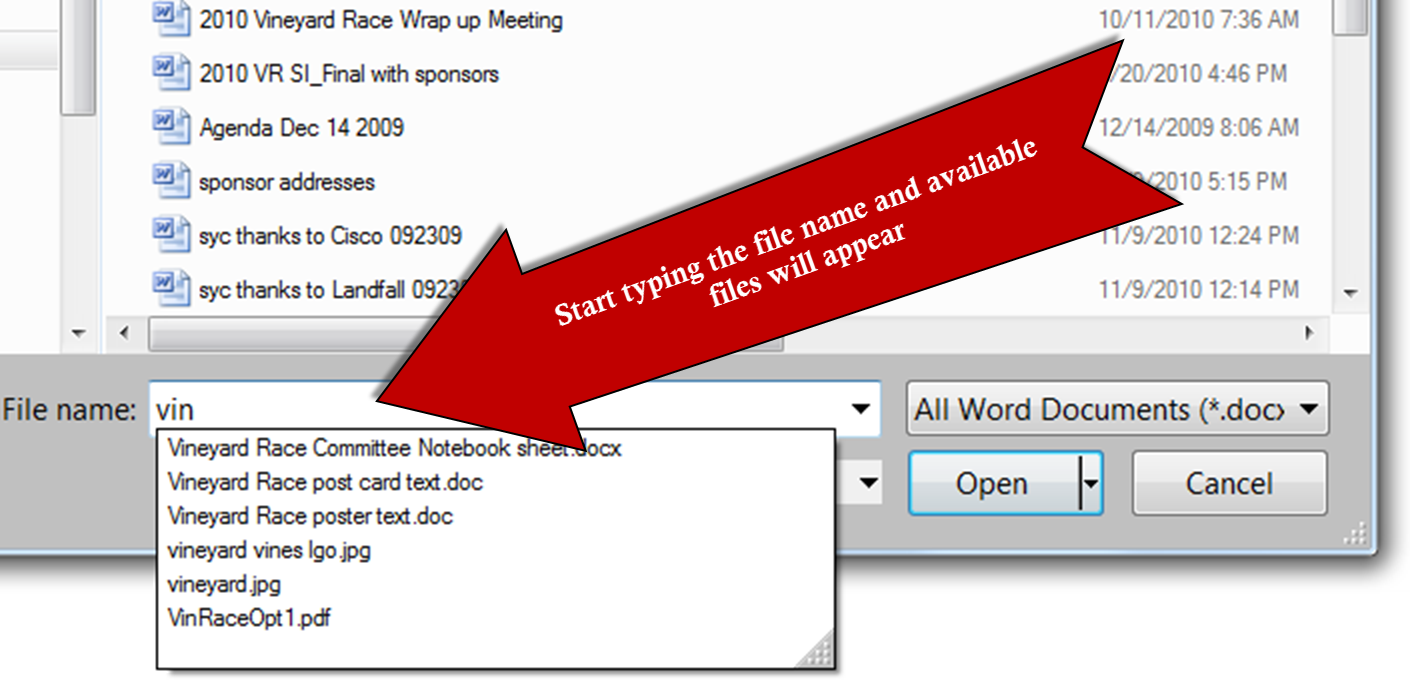
Did you also know that when you open the attach dialog box and navigate to the folder that contains the file, you can begin to type in the name of the document you want to attach in the File Name box. This is really helpful when you have a folder with lots of files in it. Give it a try the next time you need to open or attach a file.


My second book, Excel's Amazing Pivot Tables, should be out in a few months. Click the Subscribe button on the right so I can let you know when it's available for purchase.

Happy Computing!


Diane

Don't forget to click the Subscribe to 100 Computer Tips in 100 Days via email link on the right side of the screen so you get email alerts when Diane adds a new post.

Want more tech news or interesting links? You'll get plenty of both if you keep up with Diane McKeever, the writer of 100 Computer Tips in 100 Days, by subscribing to her Facebook posts or visiting her web page, www.dianemckeever.com . 


Monday, November 25, 2013

Tip #116 - Spell-Checking in Your Browser

100 (or more) Computer Tips in 100 (or more) Days

Tip #116 - Spell-Checking in Your Browser

When you're filling in information using your browser, there is a spell check option that's available to help you. I noticed that when posting on Facebook or creating an email in my Gmail account, a red squiggly underline would appear below words that were not in the dictionary. This gave me a great sense of comfort
because I am not the best speller in the world. I got comfortable giving the word my best shot and the program would let me know if I was right or wrong. And then one day my lovely red squiggles stopped appearing. I knew that I hadn't suddenly learned how to spell so I figured out that somehow my spell checking tool got turned off...but where was the tool and how do I get it back on!

My initial thought was that the spell check option was in Gmail or Facebook but I couldn't find any documentation to support that. Then I remembered I had been having trouble with my Chrome browser and maybe that was the source of my problem...and it was. If you're not seeing the red squiggles when you're entering text in a multi-line text box...on any website...find the directions for your browser below and make sure your spell check is turned on. This is helpful not only for your email but it will help on websites such as Amazon, TripAdvisor or Yelp when you're writing reviews.

One more thing, when you see a squiggly red line, move your mouse on it and click with your right mouse button (Ctrl click in the Apple environment). A menu of choices will pop up including some suggestions for the correct spelling of the word. You might also consider using "Add to dictionary" for words that are spelled correctly but are not in the dictionary. If you do that you never see the squiggly line under that word again.

Here's the directions for four of the top browsers:

Google Chrome

Mozilla Firefox

Internet Explorer

Safari

I thought I would share an interesting observation with you about my blog. Twice as many people visit my blog using Chrome browser than the Internet Explorer, which is the second most used browser for visitors. It shows that I have very smart visitors.

Please share this tip with your spelling challenged friends, you'll be glad you did.

Happy Computing!

Diane

Don't forget to click the Subscribe to 100 Computer Tips in 100 Days via email link on the right side of the screen so you get email alerts when Diane adds a new post.

Want more tech news or interesting links? You'll get plenty of both if you keep up with Diane McKeever, the writer of 100 Computer Tips in 100 Days, by subscribing to her Facebook posts or visiting her web page, www.dianemckeever.com . 

Monday, August 5, 2013

Tip #109 - Gmail Changes

100 (or more) Computer Tips in 100 (or more) Days

Tip #109 - Gmail Changes

One of the things I love about the Google folks is that they are always trying to think up ways that they feel can improve your computer experience.  You may not agree that all of their "improvements/changes" are better but generally you have a choice of whether or not
you want to implement these changes. 

Google announced this week (June 2015) that you now have an Unsend option...but you have to move quickly,  it's only available for about 30 seconds...and it doesn't say "unsend" it says "undo". Well, I guess this is better than nothing. You'll see it at the top center of your screen, just above the inbox messages. Clicking on Undo will retrieve the message from wherever messages to and open it for editing...or deleting. While you're in your inbox you might want to check out the settings mentioned below. They might make your Gmail life a little easier to deal with.


I was looking at my Gmail settings, something I recommend you do occasionally. When I clicked on the gear icon in the upper right of the Gmail screen I noticed "Configure Inbox" was a choice. I didn't remember seeing that before so I clicked on it.


The resulting dialog box was very interesting. It was offering me the opportunity to have tabs appear along the top of my Gmail inbox. I checked off a few of the choices and then clicked on the Save button. Lo and behold my inbox had tabs along the top and emails in each of the newly created tabs. Google initially determines which emails belongs in which tab. It seems to be based partly on who sent the email and partly on the content of the email. 

  Gmail Inbox Primary icon   PrimaryMessages from friends and family, as well as any other messages that don’t appear in other tabs.
  Gmail Inbox Promotions icon   PromotionsYour deals, offers, and other promotional emails.
  Gmail Inbox Social icon   SocialMessages from social networks, media-sharing sites, online dating services, gaming platforms, and other social websites.
  Gmail Inbox Updates icon  UpdatesNotifications such as confirmations, receipts, bills, and statements.
  Gmail Inbox Forums icon   ForumsMessages from online groups, discussion boards, and mailing lists.

If a message appears in the wrong tab, you simply drag the email up to the correct tab. After you move a message to a different tab, a message above your inbox will ask if you want to undo that action or choose to always put messages from that sender in the tab you chose.


Conversation View

While you are looking at your Gmail settings, you might want to consider turning the conversations feature off. The conversations feature is on by default and it groups all of the emails that relate to the same conversation into a stack automatically for you, with the newest message at the top. A conversation will break off into a new thread if the subject is changed or there are more than 100 messages. Until you get used to it, and some people never seem to get used to it, you can feel that you are losing messages. It can get confusing if you have sent an email to a group and there has been a lot of back and forth messages. 

If you would like to turn the conversation view off, click on the gear icon in the upper right side of the Gmail screen and choose Settings. Scroll on down and click the circle to the left of "Conversation view off".  Whew, I can see many of you relaxing a little bit right now. 

As long as you're in the settings area, scroll on down and review some of the other choices. For those of you who like using keyboard shortcuts, there is a feature to turn them on/off. Clicking on the blue "Learn more" option will reveal a list of all of the keyboard shortcuts you can use in Gmail. There might be other things you can turn on/off to make your life easier. 

Labs

When you want to see what may or may not become a standard feature of Gmail, you should click on the Labs tab in the Settings window. As their heading describes this section, it's "some crazy experimental stuff." You might learn to love something only to see it disappear or you could be an early adapter who can say, "yeah, I know about that...been using it for months."


Happy Computing


Diane

Don't forget to click the Subscribe to 100 Computer Tips in 100 Days via email link on the right side of the screen so you get email alerts when Diane adds a new post.

Want more tech news or interesting links? You'll get plenty of both if you keep up with Diane McKeever, the author of 100 Computer Tips in 100 Days, by subscribing to her Facebook posts or visiting her web page, www.dianemckeever.com .  Consider going to Amazon and buying her book! You'll be glad you did.

Named Cells and Ranger in Excel

Great Computer Tips Named Cells and Ranges in Excel Naming cells Cells already have names such as A1, B27, etc. but you can also give them n...