Showing posts with label Word. Show all posts

Monday, November 6, 2023

Tip #117 - Tis The Season To Mail Merge

100 (or more) Computer Tips in 100 (or more) Days

'Tis the Season to Mail Merge 

I was reminded of this tip when my phone started ringing and my inbox filled up with requests for my Mail Merge tip card. Everyone is using Mail Merge this month to get the labels printed to mail the Christmas - Hanukkah - New Year's cards and newsletters. The process is not that difficult but there are, of course, some pitfalls that you can fall into. Let's start with a description of a mail merge.

Mail Merge

Mail Merge is the process of taking a single form letter, combining it with a list of names and other information, and then merging both to create several customized documents. The results of a mail merge are generally personalized letters and labels. This post will assume you want to create labels. If you need something else I think you will be able to do that after following these instructions.

The file that contains the names and other information is the data source. The file that contains the form letter/label template is the main document.

Documents in a Mail Merge


  1. Data sources with recipient information, such as names and addresses
  2. Main document with merge fields that are placeholders for recipient information
  3. Resulting merged document

Task Pane

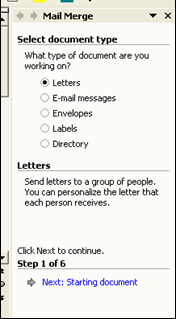
This feature of Word is executed by following the directions in the Task Pane. The Task Pane appears on the right side of your screen when the Mail Merge task is selected.

Getting Started

Create a data file. I recommend using Excel for the data file. Even if you've never used Excel before, it's easy to put names and addresses in the columns and rows of an Excel document. Look at some Excel tips, such as auto-resizing columns for assistance. Make sure that row 1 in the Excel document has the column labels such as "first name" and "last name". You will use these in step 4 of the mail merge to identify what information goes where. 

If your information is in Outlook I would recommend that you export the names to an Excel file. You generally need to do a lot of cleaning up of the information before you do your merge and it's really easy to do that in Excel.

Getting Started
To make the mail merge process easier we will use the Mail Merge Task Pane. The Task Pane will walk you through the six steps necessary to complete the merge. While it is possible to do a mail merge without bringing up the task pane I don't recommend it.

In Word 2007 or newer
Click the Mailings Tab —> Click the “Start Mail Merge” option —> Step by Step Mail Merge Wizard. 

In either version, the task pane will appear on the right side of the screen. Apple users will see a floating pane that will have the numbers one through six. As we walk through the steps you will go to each section.

Steps in the Mail Merge Task Pane
Step 1 – Select document type: letters, email messages, envelopes, labels, or directory. In our example, we will be making mailing labels.
  • Letters – personalized letters
  • Email messages – Outlook messages
  • Envelopes – mailing envelopes
  • Labels – any type of Avery-type labels
  • Directory – a catalog of information such as a telephone directory
·
Step 2 – Click “Next: Starting document” – set up the document by choosing label type or document type. 

Because the Word document on your screen is probably not a label document, click Change Document Layout and click the Label Options link.

In the Label Options dialog box, in the Label Vendors section choose "Avery US Letter". When you do this you will see all of the hundreds of Avery labels listed. Look at the box of labels you bought and check the number you should be looking for. Avery 5160 is the most popular size resulting in a sheet of 30 labels per page in three columns. When you return to your document after choosing the label template you should see your document divided into cells. NOTE: If you can not see the cell gridlines click on the Table tab, Format, and choose View Gridlines.
·
Step 3 – Select recipients — this step is asking you to identify the file where the names are coming from. 

Click Browse and find your file. If you are choosing an Excel document a second window will appear after you click open. This second window confirms the name of the sheet in Excel. Most people will use Sheet1.

A third window will appear with the Excel information. Use the checkboxes to exclude individuals from the mail merge. The data can also be sorted by clicking on the column headings. Click OK.

Step 4 – Arrange document – Insert the fields into the main document
  • In Word for Apple, drag the fields from the Mail Merge Palette on to the document.
  • In Word 2007 or newer click the Mailings Tab — Insert Merge Fields option - make sure you click on the WORDS Insert Merge Fields and not the button itself. If you click on the button a dialog box will appear. If it does just cancel and click the words. Insert each field in the order you want them on the label. Insert spaces and returns between fields where necessary. Don't worry if the text wraps, it probably will be OK when the merge is completed.
  • If creating labels, Click the Update All Labels button to add the same fields to all labels. This is also an opportunity for you to add graphics, change fonts, etc.
Step 5 – Preview your labels
  • If any adjustments are needed, click the Previous hyperlink to return to step 4 and make adjustments
Step 6 – Complete the merge
  • Print – will print the list (labels or document)
  • Edit individual labels (letter) – creates a file you can save and edit and use again. This is the option that I strongly recommend. 
à Choose All records, (recommended) a Current record, or identify a range of records, click OK
A new document appears with all of the names merged. This is the document you will print. Saving it is a good idea. Scroll through this merged document making any changes necessary to the individual labels.

Hope this helps.

Please share this tip with your friends, they'll thank you for it.

Happy Computing!

Diane

Don't forget to click the Subscribe to 100 Computer Tips in 100 Days via email link on the right side of the screen so you get email alerts when Diane adds a new post.

Want more tech news or interesting links? You'll get plenty of both if you keep up with Diane McKeever, the writer of 100 Computer Tips in 100 Days, by subscribing to her Facebook posts or visiting her web page, www.dianemckeever.com . 

Friday, November 3, 2023

Tip #31 - Generating Random Text


100 Amazing Computer Tips


Tip #31 - Generating Random Text


OK, I can hear you asking yourself, “Why would I want to generate random text?” Just bear with me.  There are many occasions when I need to do this and it’s very cool so I’m sharing it with you.

The programmers at Microsoft often need to generate random text to test software so they built in a secret macro that will produce a specific number of sentences and paragraphs made up of real words, not computer Latin words. Try this out in your Microsoft Word program.

Open a document in Word and type the following then press the enter key (return in Apple world):
=rand(5,7) d

Presto, the code you typed changed to five paragraphs each containing seven sentences. Keep in mind that the five and seven could be any two numbers depending on how much random text you need. So the next time you need to demonstrate something in Word to a colleague and you need some text to use, remember the code. It’s pretty easy if you keep in mind that rand stands for random.

If you would rather have Latin words rather than distracting English words, you can do that too. Type =lorem(5,7) in your document and then press the enter (return) key and it’s replaced with Latin text. Remember that five and seven can be any numbers you choose.

You can use this tip when you’re trying to show friends or coworkers some special word features and need to have some text to practice on. 

Happy Computing!

Diane

Buy my book at Amazon.com. It's only $14.99 and it's packed with 100 Amazing Computer Tips! They're nicely organized and really easy to follow.

Don't forget to click the Subscribe to 100 Computer Tips in 100 Days via email link on the right side of the screen so you get email alerts when Diane adds a new post.

Want more tech news or interesting links? You'll get plenty of both if you keep up with Diane McKeever, the author of 100 Computer Tips in 100 Days, by subscribing to her Facebook posts or visiting her web page, www.dianemckeever.com . 

Tip #104 - Push Pin Office Documents

100 (or more) Computer Tips in 100 (or more) Days

Tip #104 - Push Pinning Documents


This is the one tip I use all the time to help you re-open frequently used documents.

Microsoft Office has always kept track of recently opened documents and you could see a list of the four most recent documents at the bottom of the File menu. In 2007 Microsoft expanded this list to display the last eighteen documents. At the same time, they included the option to pin a document to the list so that it would never roll-off, making it a cinch to open frequently used documents again. 
When you visit the File tab in any MS Office program (or the Office Button in 2007), you'll notice that when you click on Recent on the left panel two columns appear to the right. The left column contains recently used documents, the right column displays recently visited folders. Both of the columns have push pins available to the right of each entry. Click the pin once to "pin" the document/folder to the menu. 

This feature is particularly outstanding for those of you who are in a network environment where you have to do many clicks to navigate to network drives. Those drives are available now with one click.

Happy computing!

www.dianemckeever.com


Counting Words and Characters in Word

Amazing Tips - Counting words and characters in Microsoft Word

Need to know how many words/characters you have written in Word, here's how!

So many of my tips come about as a result of a conversation with a client and this is no exception. The client was putting together a set of keywords for his website. There was a limit of 256 characters for this and he didn't know when he had reached that magic number saying his program didn't keep track of that information. Because he was using Microsoft Word I knew it had that capability.

Not only does Word keep track of the number of words you have written as you type but you can also ask it to tell you how many characters are in the document, with or without spaces being calculated. 

As you create a Word document you will notice, in the lower left corner of your screen, there is a continuous word count and even page count. When you click on the word count area a window appears with further statistics as seen in the image below. Now at a glance you can see this information about your document.


Now suppose you only need to know the statistics for a section of your document. To find out that information you would start by selecting an area of your document and then clicking on the word count area of the screen. The statistics for the picture above and below are for the same document but the one below has a paragraph selected so the results are different.


Knowing the statistics can be very important. I have been in many situations where the word or character count is limited and I need to fit my thoughts into a concise number. Hope you find this helpful. As always, if you like this tip please consider sharing it with your associates. 

Happy Computing!

Diane McKeever

---------------------------------------------------------------------

Have you bought my book yet? If not, why not??  100 Amazing Computer Tips - Shortcuts, Tricks, and Advice to Help Everyone from Novice to Professional, is available NOW at Amazon.com and Barnes & Noble in both print ($14.99) and ebook ($7.99) formats. There's also a handy link on top right side of this window for your shopping convenience. 

If you've bought my book, THANK YOU! Please consider writing a review on Amazon.com.


Don't forget to click the Subscribe to 100 Computer Tips in 100 Days via email link on the right side of the screen so you get email alerts when I add a new post.


Tip #108 - Microsoft Office's Quick Access Toolbar

100 (or more) Computer Tips in 100 (or more) Days

Tip #108 - Microsoft Office's Quick Access Toolbar

When the 2007 version of Microsoft Office came out there was a lot of user frustration. Everything was moved off the menu area that people had come to know and love, or at least know if not love. The menus were gone, replaced by tabs and ribbons. As users became more familiar with the new interface they realized that familiar actions took a few more clicks than they used to but accepted, grudgingly, the new reality. But there is hope!

Microsoft left one customizable area in the Office suite, the Quick Access Toolbar. The Quick Access Toolbar is located along the upper left side in all of the Microsoft Office programs. This handy toolbar is very easy to customize and it is a place I head to when setting up client's computers. The first item I add to the Quick Access Toolbar is "Quick Print". Adding Quick Print enables the user to send the current document to the default printer to print one copy...all without seeing the print dialog box! Yea. You want two copies, click the button twice. This is the same "Print" button we had on the toolbar for years before the big change. 

Other options I like to add are "New" to create a new document with one click, "Open" to bring up the Open dialog box and, my all-time favorite, "E-mail" which will attach the open document to an email, even if the document has not been saved! I really love the E-mail button. It will work on most computers but not if you're using a public computer such as at a library. 

Depending on how the client uses specific programs I will often add the "Sort" buttons in Excel and the "Format Painter" in Word. The picture below is of my Quick Access Toolbar, see how I've added my favorite icons. 


Adding items to the toolbar couldn't be easier. Move your mouse on the down triangle on the right side of the Quick Access Toolbar and click. A menu of the most popular tools will appear. Click as many of these tools as you would like. The tools will be displayed in the order that you click them so give that some thought. You might uncheck some and then recheck them to change the order on the toolbar. If you don't see your favorite tool listed then click on the "More Commands" option. Every single command is listed here. 

When adding icons to the Quick Access Toolbar, you might consider adding options even though they are currently available on a tab. Keep in mind that the Quick Access Toolbar is visible no matter what your current tab might be so rather than changing to a specific tab just so that you can click on an option, add it to the Quick Access Toolbar and you don't have to change tabs. 

I hope customizing the Quick Access Toolbar makes it easier and quicker for you to use the Microsoft Office programs.

Happy computing!

Diane

Don't forget to click the Subscribe to 100 Computer Tips in 100 Days via email link on the right side of the screen so you get email alerts when Diane adds a new post.

Want more tech news or interesting links? You'll get plenty of both if you keep up with Diane McKeever, the writer of 100 Computer Tips in 100 Days, by subscribing to her Facebook posts or visiting her web page, www.dianemckeever.com . 

Tip #88 - Word Styles


100 Computer Tips in 100 Days

Tip #88 - Word Styles


Microsoft has been trying for years to get you to use their built-in styles in Word to make the formatting of your document easy and consistent -- and yet you continue to resist their efforts. In the 2007 and 2010 versions of Microsoft Word, they have taken these styles and splashed them across the Home ribbon, hoping to entice you with them.
 
Styles included in Word
At a very minimum you should notice that there are two major styles, Normal and No Spacing. For those of you who do not like Microsoft’s new spacing defaults of extra spacing added between paragraphs and within paragraphs, select your document and click on the No Spacing style and all of that extra space will be removed. Of course, you’ll have to go back to manually hitting the Enter/Return key twice between paragraphs. 
 
Modify styles dialog box.
Styles can make formatting long documents mindlessly easy. When you are starting a new area of your document all you have to do is click on one of the heading styles (Heading 1, Heading 2, Heading 3, etc.) in the Styles group of the Home tab. The formatting of the paragraph will change to conform to the choices Microsoft has made for that style. These formatting choices include font, color, size, alignment, spacing, pagination, etc. If you like the idea of using styles but don’t like the formats, you can right-click on the style on the ribbon and choose Modify.  Use the Formatting options or click the Format button to access additional options. If you have already formatted your document with styles, all of the paragraphs that use the modified style will change automatically. 

Styles are a real-time saver for long documents. Once you feel comfortable with them you’ll wonder why it took you so long to use them. There are styles in Excel also so look for them there too.

-----------------------------------

My book, 100 Amazing Computer Tips - Shortcuts, Tricks, and Advice to Help Everyone from Novice to Professional, is available now at Amazon.com and Barnes & Noble in both print and ebook formats. 

Happy Computing!


Diane

Don't forget to click the Subscribe to 100 Computer Tips in 100 Days via email link on the right side of the screen so you get email alerts when Diane adds a new post.

Want more tech news or interesting links? You'll get plenty of both if you keep up with Diane McKeever, the author of 100 Computer Tips in 100 Days, by subscribing to her Facebook posts or visiting her web page, www.dianemckeever.com. 


Word - 10 Amazing Time Saving Tips

100 (or more) Computer Tips in 100 (or more) Days

Word - 10 Amazing Time Saving Tips

Here's a list of some really little things that you can use in Word (many can be used in other programs too) that can add up to big savings in time at the end of the day.  They are in no particular order. If you are not sure you have correctly identified a command on the ribbon in Word that is listed in the tip, hover over the options on the ribbons and a label will appear identifying the option. 

  • Double click a word to select it, then just type over the selected word to replace it. No need to delete the word first. Double clicking will select the word and the space following it. Try this tip in any email program!
  • Triple click to select a paragraph. Once it's selected use the right mouse button (or Ctrl click in the Apple world) to cut or copy the text. This tip works in most email programs also.
  • Use Ctrl + a (Command + a in the Apple World) to select the entire document. This is invaluable for making formatting changes to the entire document. This tip works in Excel too! No more dragging to select.
  • Use the Format Painter option on the Home tab to copy format from one place in your document to another. Double click the Format Painter tool to use it multiple times. This makes formatting your document consistently really easy.
  • Use the "No Spacing" style in the Style Group on the Home tab to get rid of the extra space that Microsoft insists you want after a paragraph. Don't forget to use Ctrl + a (Command + a in Apple) to select the whole document before you click the "No Spacing" command.
  • Once you've removed all of the extra spaces using the "No Spacing" style you might want to insert or remove additional "Returns" after each paragraph. Use the Replace command on the Home tab, Editing Group. In the Replace box type ^p which is Word's command for a paragraph. In the With box type ^p^p. You have told the program to find all of the places where there is one return and replace it with two. Click on Replace All and you are golden. You can insert the ^ character by holding down the Shift key and typing the 6 key on the alpha keyboard. If you think this tip is valuable, while you are in the Replace box click the More option and then the Special menu at the bottom. If you ever need to make global replacements in documents you need to get to know this area.
  • Need to merge two documents into the same format? Select the newly imported/merged text and click the Clear Formatting option on the Home tab, Font Group. This will remove all of the bold, underline, italic formatting with one click.
  • Want to insert a picture and have the text wrap around it? Use the Insert Picture command from the Insert tab. Insert the picture and then make sure it's still selected. Right mouse click on it and from the menu choose "Wrap Text" and then "Square". Now you can move the picture anywhere in your document and the text will wrap around it.
  • Need to insert some "dummy" text to demonstrate a feature in Word? Type the following: =rand(7,5) in your document and then press the Enter/Return key. Typing this command will insert 7 paragraphs of five sentences each in your document. Change the 7 and 5 to get greater or lesser amounts of text.
  • Want to start typing at the top of the next page? Use the Page Break command from the Insert tab. No need to press the Enter/Return key repeatedly until you're at the top of the page.
  • Need to make your document double space? Use the Line and Paragraph Spacing command on the Home tab, Paragraph group. You'll probably want to select all (Ctrl/Command + a) first before you make a line spacing selection.
  • Need to know the count of words in your document? Just glance at the lower left side of your screen in the status area. If you need to know the count for just a section of your document then select that text. The status area will display the total number of words and the total number of selected words.
  • Need to break text on another line without creating a new paragraph? Use Shift along with the Enter/Return key. This is the keyboard shortcut for a line break, not a paragraph break. This one is really helpful when you're using bullets or numbers and you want to start text under the bullet.

OK, it turns out I can't count to 10 but aren't these little tips great? Write a comment and let me know which of these is your favorite time saver.

Happy Computing!

Diane

Don't forget to click the Subscribe to 100 Computer Tips in 100 Days via email link on the right side of the screen so you get email alerts when Diane adds a new post.

Want more tech news or interesting links? You'll get plenty of both if you keep up with Diane McKeever, the writer of 100 Computer Tips in 100 Days, by subscribing to her Facebook posts or visiting her web page, www.dianemckeever.com . 

Replacing invisible characters

Replacing "invisible" characters

Cleaning up Word and Publisher documents


I was teaching a Publisher class recently and I was showing the participants how to replace all of the extra "returns" and "tabs" in the document without having to do it individually. Of course they asked if it was on my blog and I had to admit that it wasn't, so now it is! To view these invisible characters you need to click on the Show/Hide option on the Home Tab, Paragraph Group.


-----------------------------------------------------------------------------------------

This tip uses the Replace dialog box which is generally employed when you want to find all of the occurrences of ABC Moving and change it to Sam's Charting but it can also be used to replace "invisible" characters. Invisible characters are things like paragraph returns, tab characters and manual line breaks. As you can imagine it's hard to replace these characters because you certainly can't type a return or a tab or a line break into the box...or can you? Well, if you know the code for those characters or if you know where you can find those codes you can.

When you open the Replace dialog box (Home Tab, Editing Group, Replace) you will see the Find what and Replace with options. Click in the Find what box and click the "More>>>" option. Next click the "Special" option. A list of all of the invisible characters will be displayed.

If you are trying to remove all of the double returns that people like to insert in their documents to add space between paragraphs, you would click twice on the Paragraph Character option and ^p^p would be inserted in the Find what box. Move to the Replace with box and either click the "Special" option again or, now that you know what the code is, just type ^p in the box.

Finally, click the "Replace all" button. All occurrences of the double returns will be removed, replaced with a single return. If people have inserted more than two consecutive returns in the document, you may have to click the Replace all button again. Repeat this until there are "0" replacements.


Here's a list of popular character codes.  NOTE: these codes are always written in lower case.

Returns - ^p
Line breaks - ^l
Tabs - ^t
Manual page break - ^m
Non-breaking space - ^s
Section break - ^b

I use this replace information often in Word and Publisher if I have copied text from the internet. Internet documents are notoriously filled with line breaks and non-breaking spaces. If you use Publisher you'll need to write these codes down because they are not supplied for you the way they are in Word...go figure.


Have you bought my book yet? If not, why not??  100 Amazing Computer Tips - Shortcuts, Tricks, and Advice to Help Everyone from Novice to Professional, is available NOW at Amazon.com and Barnes & Noble in both print ($14.99) and ebook ($7.99) formats. There's also a handy link on top right side of this window for your shopping convenience. If you've bought my book, THANK YOU! Please consider writing a review on Amazon.com.

Happy computing!

Diane

Don't forget to click the Subscribe to 100 Computer Tips in 100 Days via email link on the right side of the screen so you get email alerts when I add a new post.

Monday, October 12, 2015

Recover Written Over Files

For Life's Uh-Oh Moments - Recover Written Over Files

I bet you've been there more than once in your life. You have a Microsoft Office document open (Word, Excel, PowerPoint, etc.) and you instinctively click the Save button...or better yet, use the Ctrl + s key to save...and then realize you meant to use the Save As feature rather than Save! Uh-oh, that original document has been written over and you can never recover it! But wait, there is hope!

Many years ago Microsoft realized that being able to recover previous versions of a document was a valuable feature so they incorporated it into all of their programs. You can access these previous versions by following these steps:
  • Open the file that you want to restore to its previous version
  • Click the File tab and click on Info
  • On the right, select the version you want to open from the versions list
  • Click the Restore button when the file opens
There, now won't you sleep more soundly tonight knowing that Microsoft has your back in this important way?

Like this tip? Want to get alerts when new tips are posted?  Click the Subscribe button on the right. 

Happy Computing!

Diane McKeever

Have you bought your copy of my book, "100 Amazing Computer Tips"? Click here to get one on Amazon.com. It's only $14.99 and it's packed with time saving tips. It makes a great gift any time of the year.


Wednesday, July 9, 2014

Amazing Tips - Recovering Unsaved Documents

Recovering Unsaved Documents!

Microsoft has your back on this!

How many times has this happened to you, you close a program quickly and in the "do you want to save changes" dialog box you reflexively click the "Don't Save" option...and then you realize that you didn't really mean to do that! This is usually followed by a burst of expletives as you mentally kick yourself for being so stupid. Well, Microsoft has your back on this. You can recover unsaved documents for up to four days from closing them!


To recover unsaved documents:

  1. Open your program up again, if you closed it, and click on the File tab. 
  2. Click on Recent and you will see in the lower right side of the screen those wonderful words...Recover Unsaved Documents (or Workbooks or Presentations, depending on program). 
  3. Click the link and it will reveal that, unbeknownst to you, there is a folder labeled "Unsaved Files", created by your new best friends at Microsoft. Recent documents will be listed there for you to choose from. 
  4. Click on a file and click Open
  5. Now that your recovered document is open, don't forget to save your file!

Keep in mind the files in this folder are only saved for four days so don't dawdle, reopen the file quickly.

You might want to check the settings in your Office programs to see if this feature is turned on (it is by default) and adjust the AutoSave frequency. To do this:


  1. Open the Office program (Word, Excel or PowerPoint)
  2. From the File tab choose Options
  3. On the left panel choose Save
  4. Note the save documents settings and make sure that both Save AutoRecover information every XX minutes and Keep the last autosaved version if I close without saving have a check mark

The save button is still your best friend and the mantra I try to impress in my classes is to "Save Early and Often" which is still the best policy. But it's good to know you have Microsoft watching out for when you rashly close documents without saving!

Just a word about the AutoRecover setting of every 10 minutes, which is the default. If you want to minimize your exposure in case your document is unexpectedly closed, you might want to consider changing this to 5 minutes.

One more thing, you might have noticed the green arrow and box in the top picture of this post. Those are pointing to push pinned documents. For information on this great office feature see my post on this helpful topic.


Have you bought my book yet? If not, why not??  100 Amazing Computer Tips - Shortcuts, Tricks, and Advice to Help Everyone from Novice to Professional, is available NOW at Amazon.com and Barnes & Noble in both print ($14.99) and ebook ($7.99) formats. There's also a handy link on top right side of this window for your shopping convenience. If you've bought my book, THANK YOU! Please consider writing a review on Amazon.com.

Happy computing!

Diane

Don't forget to click the Subscribe to 100 Computer Tips in 100 Days via email link on the right side of the screen so you get email alerts when I add a new post.

Monday, June 30, 2014

Amazing Tips - The Art of Hovering

The Art of Hovering

Getting more from your software

I am frequently asked how I learn new software and keep current with new releases. The primary approach I use is to hover.

According to Merriam Webster, there are many uses for the word hover including:
  • to float in the air without moving in any direction
  • to stay very close to a person or place
  • to stay near a specified point or level
When learning new software I am referring to the third use of hovering. I move slowly across any toolbars that are available, pausing at each item. As I do so a balloon label generally appears giving me some insight into the use of the tool. This is quite helpful because it is not uncommon that the icons defy deciphering and the balloon label is of limited help. At least at that point I can go to a browser and search for more information about the tool since I now know what it's called.

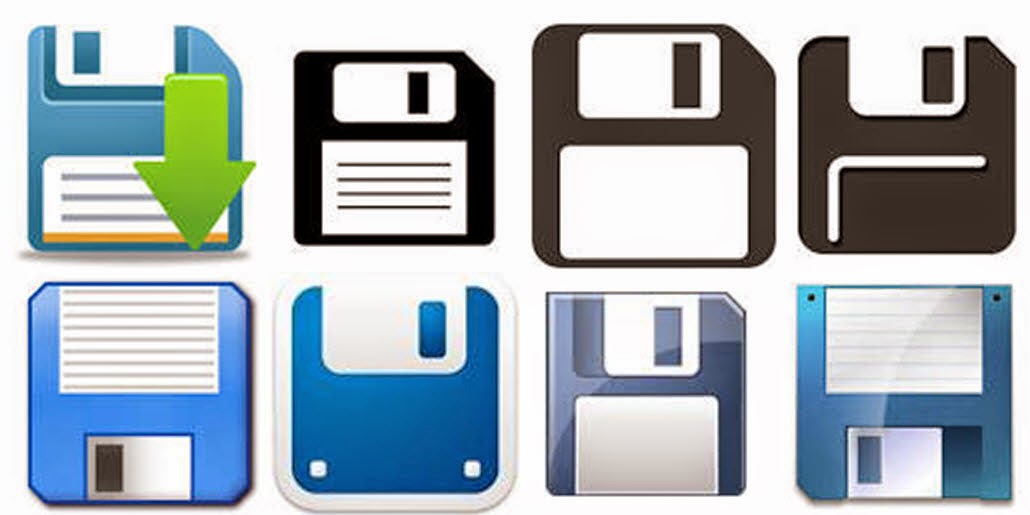
I think it's generational but, the graphic designers who come up with the size/shape/color of the tools often have different perspective than I do and different from the people I work with. In the early days of computers, the designers came up with the blue floppy disk to represent "Save". Twenty five years later I'm still pointing it out to people and explaining that it is the tool to use to save their work. The response I get is predictable. I hear everything from, "I thought it was a 50's TV set", to "What's a floppy disk." I used to carry a floppy in my bag to demonstrate the likeness to the save button but, without a machine to read them, my floppies didn't survive the last move.

One of my favorite discoveries that I found using the hover technique was to locate the "missing" dialog boxes I had become accustomed to using in Microsoft Office programs. When Microsoft did away with menus with the 2007 version of the office suite, I could no longer go to the Format menu to format text and paragraphs...not until I hovered and discovered the "Show dialog box" option on the ribbon. Now when I want to use advanced features in Word, features that the engineers didn't include on the ribbons, all I have to do is click the Show dialog box option.

Write a comment about a tool you learned about when you were hovering.


Have you bought my book yet? If not, why not??  100 Amazing Computer Tips - Shortcuts, Tricks, and Advice to Help Everyone from Novice to Professional, is available NOW at Amazon.com and Barnes & Noble in both print ($14.99) and ebook ($7.99) formats. There's also a handy link on top right side of this window for your shopping convenience. If you've bought my book, THANK YOU! Please consider writing a review on Amazon.com.

Happy computing!

Diane

Don't forget to click the Subscribe to 100 Computer Tips in 100 Days via email link on the right side of the screen so you get email alerts when I add a new post.

Friday, May 30, 2014

Amazing Tips - More FREE Fonts

More FREE Fonts

More Sites to get Great FREE Fonts for Downloading


When I recently posted about Google's great free fonts, the page hits went through the roof. Clearly fonts, especially free fonts, are a popular subject. Since my initial post I became aware of a few more sites you might want to visit.

Once you find a new font they are easy to install. Here's how to do it.

  1. Click the download option.
  2. When the file finishes downloading, open the file. The files will be zipped (.zip) or compressed files. 
  3. When you open the zip file you will see a file with the font name. This will either be a TrueType or OpenType file type. Double click on the font file.
  4. Click the Install button.

That's it! The next time you go into any of your programs you will see the new font(s) in the font list!

Directions for installing the fonts is at the end of this post.

FontSquirrel
FontSquirrel font filters.
According to the FontSquirrel website, "Free fonts have met their match. We know how hard it is to find quality freeware that is licensed for commercial work. We've done the hard work, hand-selecting these typefaces and presenting them in an easy-to-use format." They have hundreds of fonts available for download. Click the filter options on the right side of the screen to limit your search. The fonts are "100% free for Commercial Use". This is important because it means you can use it in your newsletters, books and other commercial endeavors. 

DaFont
It's not very clear on DaFont if the fonts are really free or not or if they're appropriate for commercial use. They say: "The fonts presented on this website are their authors' property, and are either freeware, shareware, demo versions or public domain. The license mentioned above the download button is just an indication. Please look at the readme-files in the archives or check the indicated author's website for details, and contact him if in doubt. 
If no author/license is indicated that's because we don't have information, that doesn't mean it's free.”

Each download contains a readme file that you need to check out before you use their fonts in commercial documents.

FontSpace
FontSpace claims that they have over 23,532 fonts that are all free and have been "shared by designers around the world." With that many fonts available, you should find just the perfect characters for your next flyer/invitation/newsletter/website or to just write a memorable letter to the power company.
These may not look like fonts but they are! These are all example of "dingbat" fonts. Of course you wouldn't write a letter in dingbats but they can be very useful nonetheless. 
Also available from FontSpace are fonts that result in decorative lines. These lines can then be used on wedding invitations, brochures, newsletters or anywhere else you want to add an attractive divider. Here's an example of some of the types of "lines" you can create using the Foglihten Deco font. Pretty cool, right? You can see that the three wavy lines are created from the same letter, the number 1, combined with other letters. The results are endless.


My biggest problem was choosing which fonts to install, I felt like the proverbial kid in a candy shop. Enjoy your new fonts!

My book, 100 Amazing Computer Tips - Shortcuts, Tricks, and Advice to Help Everyone from Novice to Professional, is available NOW at Amazon.com and Barnes & Noble in both print ($14.99) and ebook ($7.99) formats. There's also a handy link on top right side of this window for your shopping convenience..

Happy computing!

Diane


Don't forget to click the Subscribe to 100 Computer Tips in 100 Days via email link on the right side of the screen so you get email alerts when Diane adds a new post.

Monday, May 19, 2014

Amazing Tip - Personalizing Bullets

Personalizing Bullets - The safe kind!

Bullets in Word, PowerPoint and Publisher

Bullets in documents have been around for a long time. I remember using them on typewritten documents but in those days the characters used for bullets were very limited. Typically you would type an asterisk (now called a star), a plus, a dash or the lower case "o". I once had a boss who liked the look of a filled in o, the one that we have become familiar with since the advent of word processors, but to achieve that look I had to take a black pen and fill the o's in by hand and then photo copy the document. Yeah, he was one of my favorite bosses!

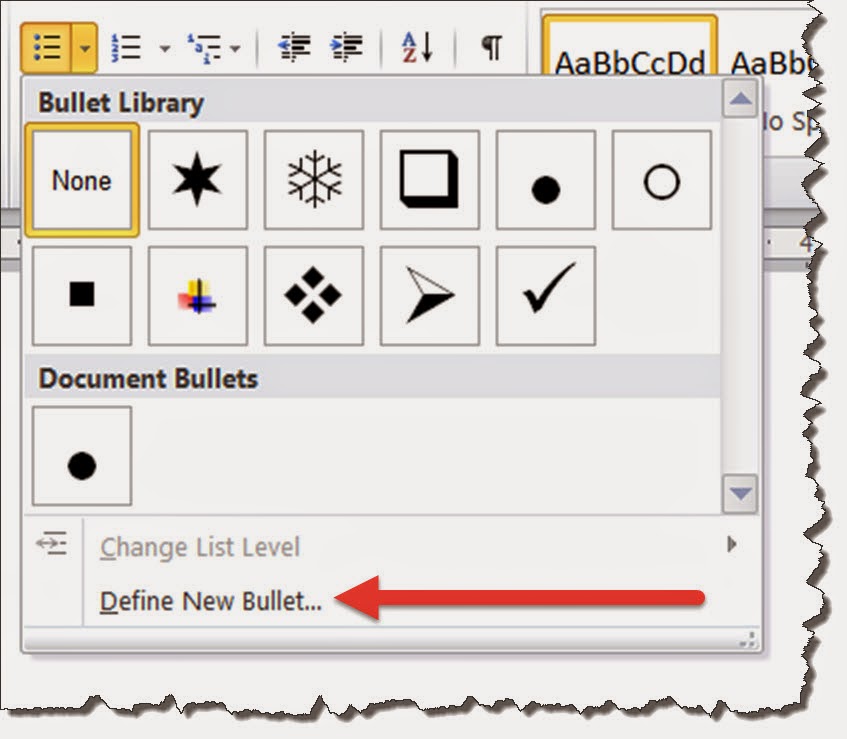
Today we use bullets all the time in Word, PowerPoint and Publisher documents (as well as other programs) and don't think much about our choices. Microsoft has given us a variety of bullets that we can select from when we click the down arrow to the right of the insert bullets command (see photo on right). They're great but suppose you wanted something special. Maybe you're a realtor and you'd like a house for a bullet or you're a painter and you'd like a paint brush, well we have those available too, you just need to click the Define New Bullet link.

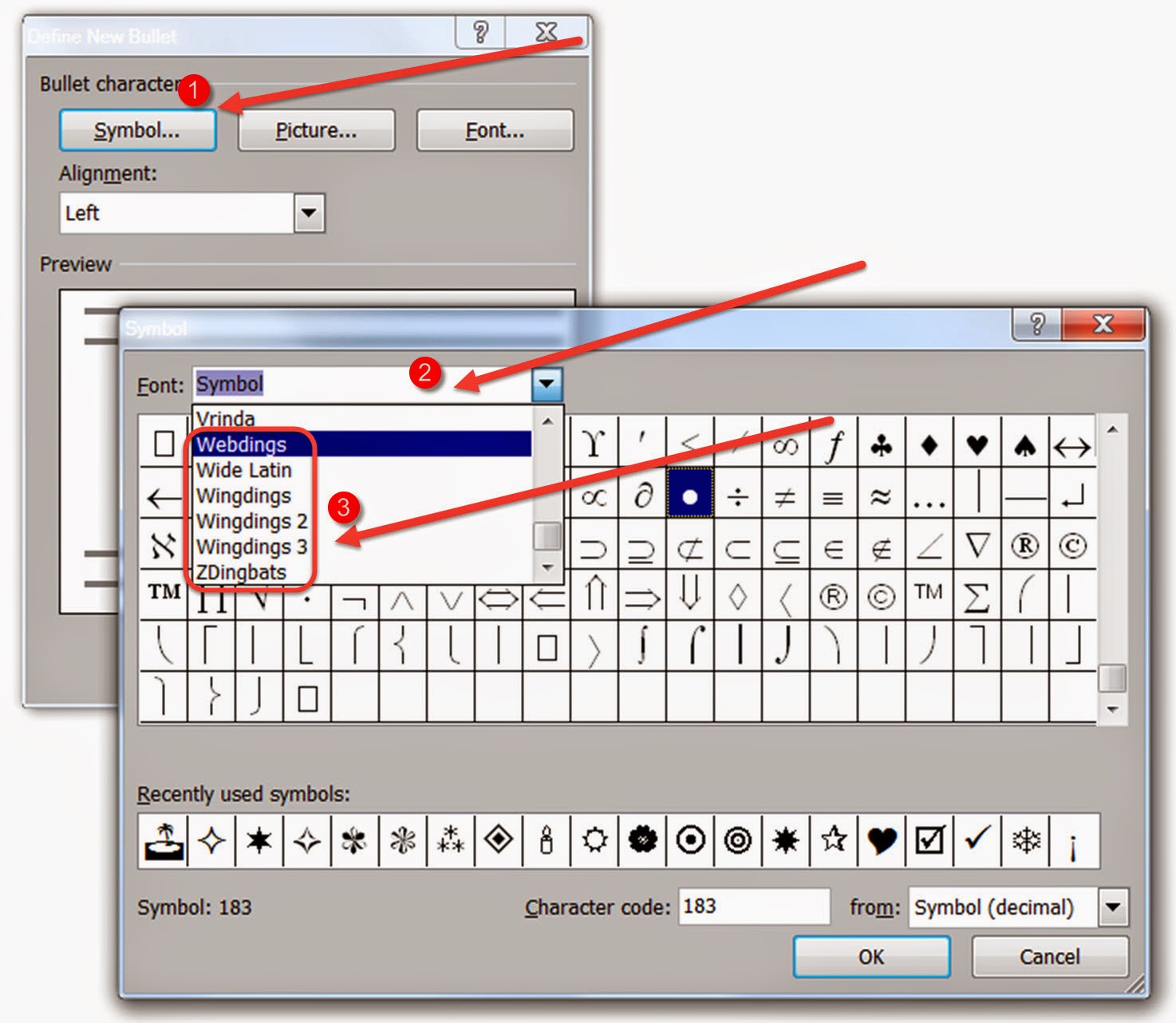
In the dialog box that appears do the following:

1. Click the Symbol option
2. Click in the font box to change the font to Webdings, Wingdings, Wingdings 2, Wingdings 3 or ZDingbats.
3. Use the preview screen to choose a cool new bullet. Don't forget to scroll up and down the preview screen, there are about 12 rows of bullets in each font.

When you've identified your new bullet click OK a few times to return to your document. There it is, your great new customized bullet! This is one of the reasons why you have fonts such as the "ding" fonts listed above. If you had explored them previously you might have wondered about their use.

If you're interested in the origin of the word dingbat as it relates to these special characters and their use in typography, there's an interesting explanation on WiseGeek.com. If you really love fonts and want to see and buy more, I suggest you go to myfonts.com. They have an amazing selection of fonts that are fairly priced. You can also do a search for "free fonts" and you'll be able to add some cool selections to your font stash. You can also subscribe to their monthly newsletter where they introduce new fonts and feature font designers. Wouldn't it be a more interesting world if we could get people to move beyond Times New Roman, Ariel and Comic San in their documents?

The pictures accompanying these directions were taken in Word 2010. The dialog boxes may differ slightly in PowerPoint and Publisher and on the Apple version of these programs, but I think you can navigate now that you know it's possible to personalize your bullets.

My book, 100 Amazing Computer Tips - Shortcuts, Tricks, and Advice to Help Everyone from Novice to Professional, is available NOW at Amazon.com and Barnes & Noble in both print and ebook formats. There's also a handy link on top right side of this window.

Happy Computing!


Diane

Don't forget to click the Subscribe to 100 Computer Tips in 100 Days via email link on the right side of the screen so you get email alerts when Diane adds a new post.

Want more tech news or interesting links? You'll get plenty of both if you keep up with Diane McKeever, the author of 100 Computer Tips in 100 Days, by subscribing to her Facebook posts or visiting her web page, www.dianemckeever.com. 

Named Cells and Ranger in Excel

Great Computer Tips Named Cells and Ranges in Excel Naming cells Cells already have names such as A1, B27, etc. but you can also give them n...