Friday, August 9, 2013

Tip #110 - Special Characters on Apple

100 (or more) Computer Tips in 100 (or more) Days

Tip #110 - Special Characters on Apple

My Apple friends have been feeling neglected by my posts. Hopefully they will be happy to find out how to insert special characters (such as accented letters, copyright symbols, foreign language punctuation, etc) into their documents. Here is a printable list so that you can have it handy when you need to insert any of these characters.


You might find that if you just print this page the sheet will print too small. If that's the case you should right-click (Ctrl click) and choose "Save As" to save the picture to your hard drive and then print from there. If you have trouble doing this please send me an email (diane@dianemckeever.com) and I will send a full size version of this chart to you.

If you have an iPad or iPhone you don't need this list. Hold down your finger on any vowel and a list of accented characters will pop up! Brilliant!

Happy Computing

Diane

Don't forget to click the Subscribe to 100 Computer Tips in 100 Days via email link on the right side of the screen so you get email alerts when Diane adds a new post.

Want more tech news or interesting links? You'll get plenty of both if you keep up with Diane McKeever, the writer of 100 Computer Tips in 100 Days, by subscribing to her Facebook posts or visiting her web page, www.dianemckeever.com . 

Monday, August 5, 2013

Tip #109 - Gmail Changes

100 (or more) Computer Tips in 100 (or more) Days

Tip #109 - Gmail Changes

One of the things I love about the Google folks is that they are always trying to think up ways that they feel can improve your computer experience.  You may not agree that all of their "improvements/changes" are better but generally you have a choice of whether or not
you want to implement these changes. 

Google announced this week (June 2015) that you now have an Unsend option...but you have to move quickly,  it's only available for about 30 seconds...and it doesn't say "unsend" it says "undo". Well, I guess this is better than nothing. You'll see it at the top center of your screen, just above the inbox messages. Clicking on Undo will retrieve the message from wherever messages to and open it for editing...or deleting. While you're in your inbox you might want to check out the settings mentioned below. They might make your Gmail life a little easier to deal with.


I was looking at my Gmail settings, something I recommend you do occasionally. When I clicked on the gear icon in the upper right of the Gmail screen I noticed "Configure Inbox" was a choice. I didn't remember seeing that before so I clicked on it.


The resulting dialog box was very interesting. It was offering me the opportunity to have tabs appear along the top of my Gmail inbox. I checked off a few of the choices and then clicked on the Save button. Lo and behold my inbox had tabs along the top and emails in each of the newly created tabs. Google initially determines which emails belongs in which tab. It seems to be based partly on who sent the email and partly on the content of the email. 

  Gmail Inbox Primary icon   PrimaryMessages from friends and family, as well as any other messages that don’t appear in other tabs.
  Gmail Inbox Promotions icon   PromotionsYour deals, offers, and other promotional emails.
  Gmail Inbox Social icon   SocialMessages from social networks, media-sharing sites, online dating services, gaming platforms, and other social websites.
  Gmail Inbox Updates icon  UpdatesNotifications such as confirmations, receipts, bills, and statements.
  Gmail Inbox Forums icon   ForumsMessages from online groups, discussion boards, and mailing lists.

If a message appears in the wrong tab, you simply drag the email up to the correct tab. After you move a message to a different tab, a message above your inbox will ask if you want to undo that action or choose to always put messages from that sender in the tab you chose.


Conversation View

While you are looking at your Gmail settings, you might want to consider turning the conversations feature off. The conversations feature is on by default and it groups all of the emails that relate to the same conversation into a stack automatically for you, with the newest message at the top. A conversation will break off into a new thread if the subject is changed or there are more than 100 messages. Until you get used to it, and some people never seem to get used to it, you can feel that you are losing messages. It can get confusing if you have sent an email to a group and there has been a lot of back and forth messages. 

If you would like to turn the conversation view off, click on the gear icon in the upper right side of the Gmail screen and choose Settings. Scroll on down and click the circle to the left of "Conversation view off".  Whew, I can see many of you relaxing a little bit right now. 

As long as you're in the settings area, scroll on down and review some of the other choices. For those of you who like using keyboard shortcuts, there is a feature to turn them on/off. Clicking on the blue "Learn more" option will reveal a list of all of the keyboard shortcuts you can use in Gmail. There might be other things you can turn on/off to make your life easier. 

Labs

When you want to see what may or may not become a standard feature of Gmail, you should click on the Labs tab in the Settings window. As their heading describes this section, it's "some crazy experimental stuff." You might learn to love something only to see it disappear or you could be an early adapter who can say, "yeah, I know about that...been using it for months."


Happy Computing


Diane

Don't forget to click the Subscribe to 100 Computer Tips in 100 Days via email link on the right side of the screen so you get email alerts when Diane adds a new post.

Want more tech news or interesting links? You'll get plenty of both if you keep up with Diane McKeever, the author of 100 Computer Tips in 100 Days, by subscribing to her Facebook posts or visiting her web page, www.dianemckeever.com .  Consider going to Amazon and buying her book! You'll be glad you did.

Friday, July 12, 2013

Tip #106 - Facebook Graph Search Feature

100 (or more) Computer Tips in 100 (or more) Days

Tip #106 - Facebook Graph Search Feature

Mark Zuckerberg (Credit: AP/Jeff Chiu)
Facebook Graph Search is a feature of Facebook that rolled out earlier this week (July 8, 2013). It uses information that you have added to your to your Facebook profile to create easy searches. It uses the "Search for people, places and things" box to allow you to search for friends who "Live in Connecticut and like to cycle" or "Friends who like to eat sushi". 


After each search you are presented with a page full of profile pictures, many of whom are people you have never seen before because Graph Search looks through your "friends of friends" network, which is vastly larger than just your friends network. After you've done a few searches you might be surprised about which of your friends fall into different categories.  Beware this search tool becomes a little addictive after a while.

Keep in mind that it's not just profile information but pictures, music, movies, games, etc. that Facebook has put into a giant database to make the information searchable. Of course one of the first questions I'm sure you have is, "Can I control any of this?" and the answer is a big maybe. There are some privacy settings you need to check on, including limiting visibility to old posts. 

Past Posts
To limit the visibility of your old posts with one click you can go into your privacy settings (use the cog icon in the upper right side of the Facebook page) and click on "Limit Past Posts". Here you should be able to make everything that was once public limited to only your friends. 

Present Posts
Go through your Profile (click Edit Profile just under your profile picture in the upper left side of the screen) and check the audience selectors in the various sections. You can limit what information is public and included in strangers' Graph Searches. Pay particular attention to the interests sections (movies, music, books, games, etc.) since this is where much of the searchable information comes from. Setting all of these to Friends, Friends Except Acquaintances or Only Me would be good choices.

Future Posts
Each time you post on Facebook you have an opportunity to choose the audience. Remember that the default setting for this is Public so you should have changed this by now. If you haven't, go back to the Privacy Settings area and make this change to friends as the default. You can also create lists that can be selected so that a specific post is only visible to a limited group of people you specify. Directions for this can be found in Tip #44. Friend Lists in Facebook

I know change is difficult for most of us and Graph Search seems like we've made one giant step forward (backward!) in the Big Brother society but if you make the changes that need to be made as to what is included in other people's searches for your information, you might feel a little better.

Happy computing!

Diane

Don't forget to click the Subscribe to 100 Computer Tips in 100 Days via email link on the right side of the screen so you get email alerts when Diane adds a new post.

Want more tech news or interesting links? You'll get plenty of both if you keep up with Diane McKeever, the writer of 100 Computer Tips in 100 Days, by subscribing to her Facebook posts or visiting her web page, www.dianemckeever.com


Friday, July 5, 2013

Top 10 Posts

100 Computer Tips in 100 Days

Top 10 Tips To Date

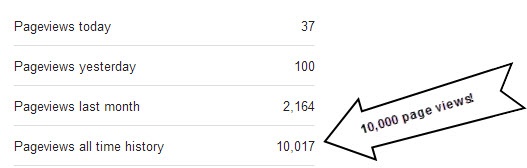
Today, July 5, 2013, some time between 2 AM and 7 AM (ET), my blog had its 10,000 page view. Woohoo!!!  It is a very exciting day for me. When I started writing my blog I didn't know how many people would be reached by it but I see that it was well worth my taking the time to do this.


Big news! In the next week or two I will be making the entire blog available as one PDF document for downloading. I'm putting the finishing touches on that document. Thank you for coming along on the journey. I hope you feel you are a better, more effective computer user as a result of reading my blog.

Here'a a list of the top ten tips based on the number of views they have had. Have you read all of them? Please feel free to send this link to anyone you think might benefit from using any of these.


Tip #1.      Basic Mouse Actions

Tip #3.      Using Tabbed Browsers

Tip #76.    Lock Your Windows

Tip #43.    Making Word Clouds

Tip #93.    Excel Scenario Manager

Tip #53.    Excel Lists
Tip #103      Bookmarking a Browser Page


Happy Computing!

Diane


Don't forget to click the Subscribe to 100 Computer Tips in 100 Days via email link on the right side of the screen so you get email alerts when Diane adds a new post.

Want more tech news or interesting links? You'll get plenty of both if you keep up with Diane McKeever, the writer of 100 Computer Tips in 100 Days, by subscribing to her Facebook posts or visiting her web page, www.dianemckeever.com . 

Tuesday, May 21, 2013

Oops - Redo on Tip #103

Tip #103 on Bookmarking Browser Pages got published before I finished writing it! Oops. Thanks for all of your notes asking about it. Now I know that people are reading my tips ;-)  Please revisit it now that it's complete. Use the link above to get there quickly.

Sorry for the confusion.

Happy Computing!

Diane

Monday, May 20, 2013

Tip #103 - Bookmarking a Browser Page


100 Computer Tips in 100 Days

Tip #103 - Bookmarking a Browser Page


I spoke with two clients after posting the index for my blog. They both commented that they would bookmark the page if they knew how to do it! Of course the directions depend on which browser you're using. Some refer to Bookmarking as adding to Favorites. What ever it's called, it is the process that allows you to save website pages you've gone to in your browser. Generally these pages can be grouped together into folders or listed individually or added to a bookmark/favorites bar. The bookmark/favorites bar appears along the top of your browser window and should be used for webpages you use very frequently such as your email, calendar or facebook page. All of the browsers listed here use Ctrl + d (Command on the Apple) to add bookmark or favorite entries.
Internet Explorer
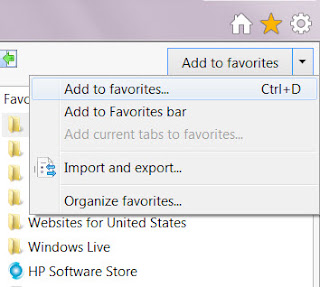
The Internet Explorer is one of the browsers that uses the term Favorites to help you quickly return to web sites you've visited. To add to the favorites, go to a page you want to add to your favorites list and click the yellow star in the upper right side of your screen. A drop down menu will appear. Click on Add to favorites to add the current page to your favorites list or to the Favorites bar. As you can see from the screen shot on the right, you can also add a page to your favorites list by using the keyboard command of Ctrl + d.


Mozilla Firefox
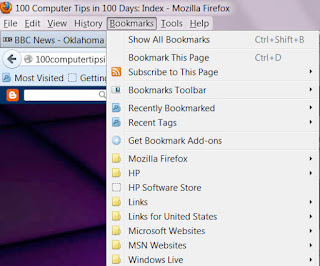
Mozilla Firefox uses the Bookmark menu to add bookmarks to its browser. Again you go to the page that you would like to bookmark and click on the bookmark menu. From the menu choose "Bookmark This Page". A further dialog box will appear so that you can choose whether this should appear on the bookmark menu or bookmark bar. From this dialog box you can also click on "Choose" to identify a specific folder for the bookmarks to be saved in or click New Folder to create a new folder group. Note in the screenshot to the left there are many folders that help organize saved bookmarks. This really helps if you are researching a topic and want to group your found pages. Note the use of Ctrl + d to add the bookmark using the keyboard.

Google Chrome
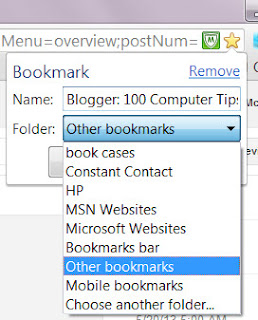
Like the Internet Explorer, Google Chrome uses a yellow star to bookmark a page. When you click the yellow star in the upper right side of the page a dialog box appears for you to choose where the bookmark will be saved. You also have an opportunity to edit the name that will appear in the list as well as choose between the bookmark bar or folders. Although it is not documented when you hover over the star, Ctrl + d will bring up the bookmark dialog box.


AOL Browser

Many people log on to AOL through a desktop icon and then use the browser in the AOL program. AOL uses the term Favorites and they use a red heart to add to the favorites menu. When you click the heart a further dialog box appears allowing you to choose where the newly identified page will be stores. Note the Favorites menu at the top right of the screen. Clicking on the Favorites menu gives you access to all of your stored favorites.


Safari
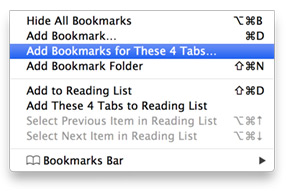
The Safari browser uses the term bookmark. Across the top of the screen you will see the Bookmark menu between History and Window. When you are at a page you would like to add as a bookmark, click the Bookmark menu and choose "Add Bookmark". As you can see from the screenshot, Command + d can be used as well. A further dialog box will allow you to choose whether the bookmark will appear in the menu or on the bookmark bar.

Hope this helps. Don't forget to bookmark those pages in my blog that you would like to revisit, such as the index page.

Happy Computing.

Diane

Don't forget to click the Subscribe to 100 Computer Tips in 100 Days via email link on the right side of the screen so you get email alerts when Diane adds a new post.

Want more tech news or interesting links? You'll get plenty of both if you keep up with Diane McKeever, the writer of 100 Computer Tips in 100 Days, by subscribing to her Facebook posts or visiting her web page, www.dianemckeever.com . 

Tuesday, May 14, 2013

Tip # 102 - FTP via Skype


100 (or more) Computer Tips in 100 (or more) Days

Tip #102 - FTP via Skype


Recently I had to send a BIG graphic file to China for a client but the file was too big to attach to an email. The provider asked if I had a Skype account (of course I did, how else can I see the grands) so we exchanged Skype names. 

After I had added his name to my contact list and double clicked on the name, I saw the plus sign button. Clicking on it gives you choices that include: Send File, Send Contacts, Share Screens and Add People.  Of course, I was looking to send a file so I chose that option that brought up the standard dialog box to choose the file. Once the file was chosen I then clicked on the Video call button. When the contact accepted the call the download started. A few minutes later a huge file had been transferred from FL to Shanghai, China!!! Isn't the internet a wonderful thing??? 

Hope you enjoyed this tip.

Happy Computing!

Diane

Don't forget to click the Subscribe to 100 Computer Tips in 100 Days via email link on the right side of the screen so you get email alerts when Diane adds a new post.

Want more tech news or interesting links? You'll get plenty of both if you keep up with Diane McKeever, the writer of 100 Computer Tips in 100 Days, by subscribing to her Facebook posts or visiting her web page, www.dianemckeever.com . 

Named Cells and Ranger in Excel

Great Computer Tips Named Cells and Ranges in Excel Naming cells Cells already have names such as A1, B27, etc. but you can also give them n...